EF Core and other first-party tools are amazing in modern data access development in the .NET ecosystem.
However, they can be taken further when paired with higher-level tooling that improves productivity, design experience and code quality.
I have been experimenting with Devart’s offerings and today I will present you with Entity Developer and dotConnect.
Entity Developer
Entity Developer is a high-end ORM designer for Entity Framework, NHibernate, LinqConnect, Telerik Data Access and LINQ to SQL.
It provides powerful visual modeling tools and advanced code generation capabilities, allowing you to design ORM models quickly and produce clean, maintainable and extensible code.
It is available in three variants: a standalone application, a console edition and full integration with Visual Studio.
dotConnect
dotConnect is a suite of high-performance ADO.NET data providers designed for direct access to major database systems and cloud services.
It integrates seamlessly with EF Core, Entity Framework, NHibernate, and other ORMs, helping you get the best performance and flexibility from your data layer.
dotConnect is available both as a universal package and as provider-specific editions, depending on your database needs.
Getting Started
For Entity Developer, installation can be done either by installing it via the setup wizard or by the command line.
For dotConnect, you can install it using the NuGet Package Manager, a setup wizard, or the command line.
Installation links:
The installation process is fairly straightforward. There are quite a few steps and windows involved, so we won’t go through each one in detail. If you run into any issues, the official documentation links above should guide you through everything you need.
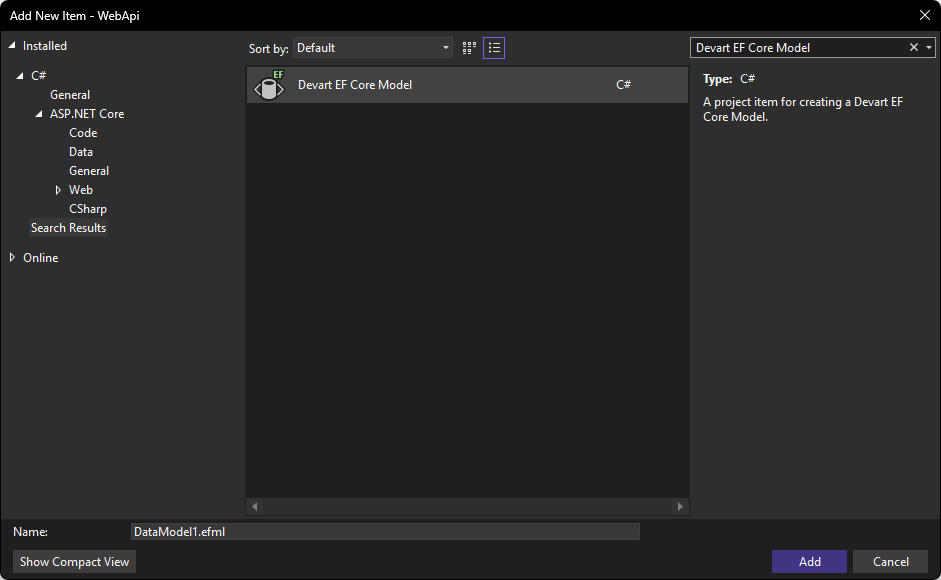
With the new project created, all we need to do to get started is open Add New Item and search for the Devart EF Core Model:
On the first window we can choose between Model First or Database First approaches.
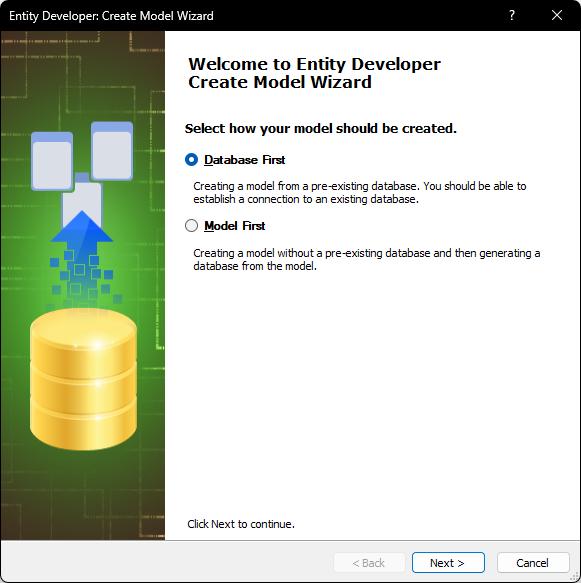
Basically, the difference is that with the database-first approach you can create a model from your pre-existing database. With the model-first approach you can generate the database from your models.
Model-First Workflow
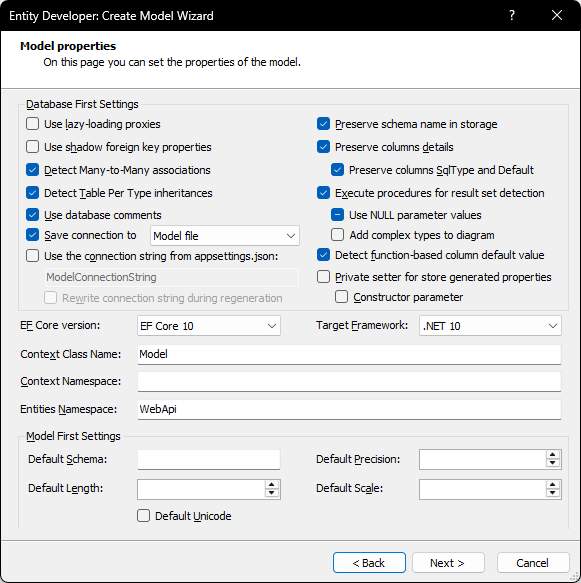
For the model-first approach all you need to do is configure the default settings, such as the target framework, EF Core version, enabled features and namespace conventions.
Once that’s set up, the final step is choosing a template for generating classes for your EF Core model. Devart provides a default template out of the box:
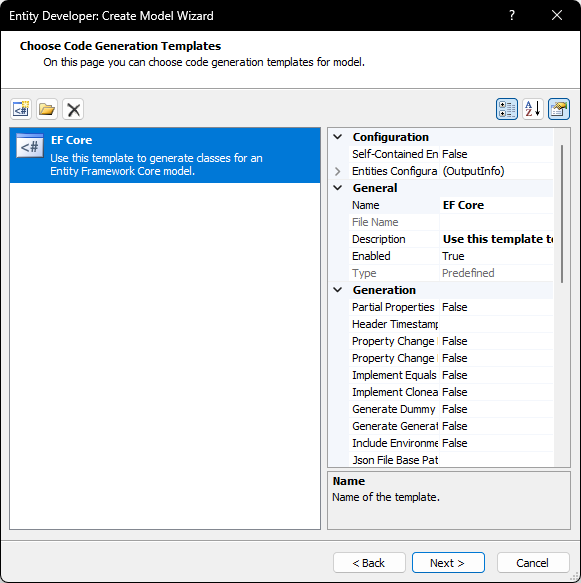
You can also create your own templates, allowing you to standardize and optimize your EF Core workflow for future projects.
Database-First Workflow
The Database-First approach is just an extended version of the Model-First workflow.
The first step is to connect to your database:
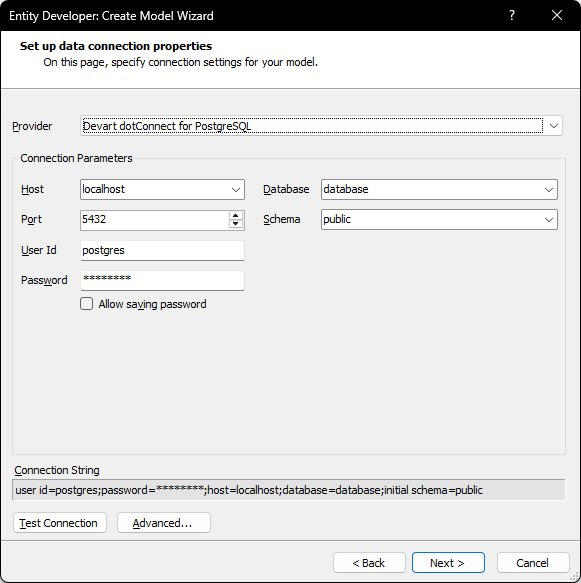
After that, you can choose between generating models from an existing database or starting with an empty model and updating the database later.
If you choose to start with an empty model, the rest of the setup process remains the same as previously described.
When generating models from a database, you will need to select the tables to include, as well as define the naming conventions that will be applied to the generated elements.
Initial Walkthrough
Once we are completely set up we can start working on our diagram:
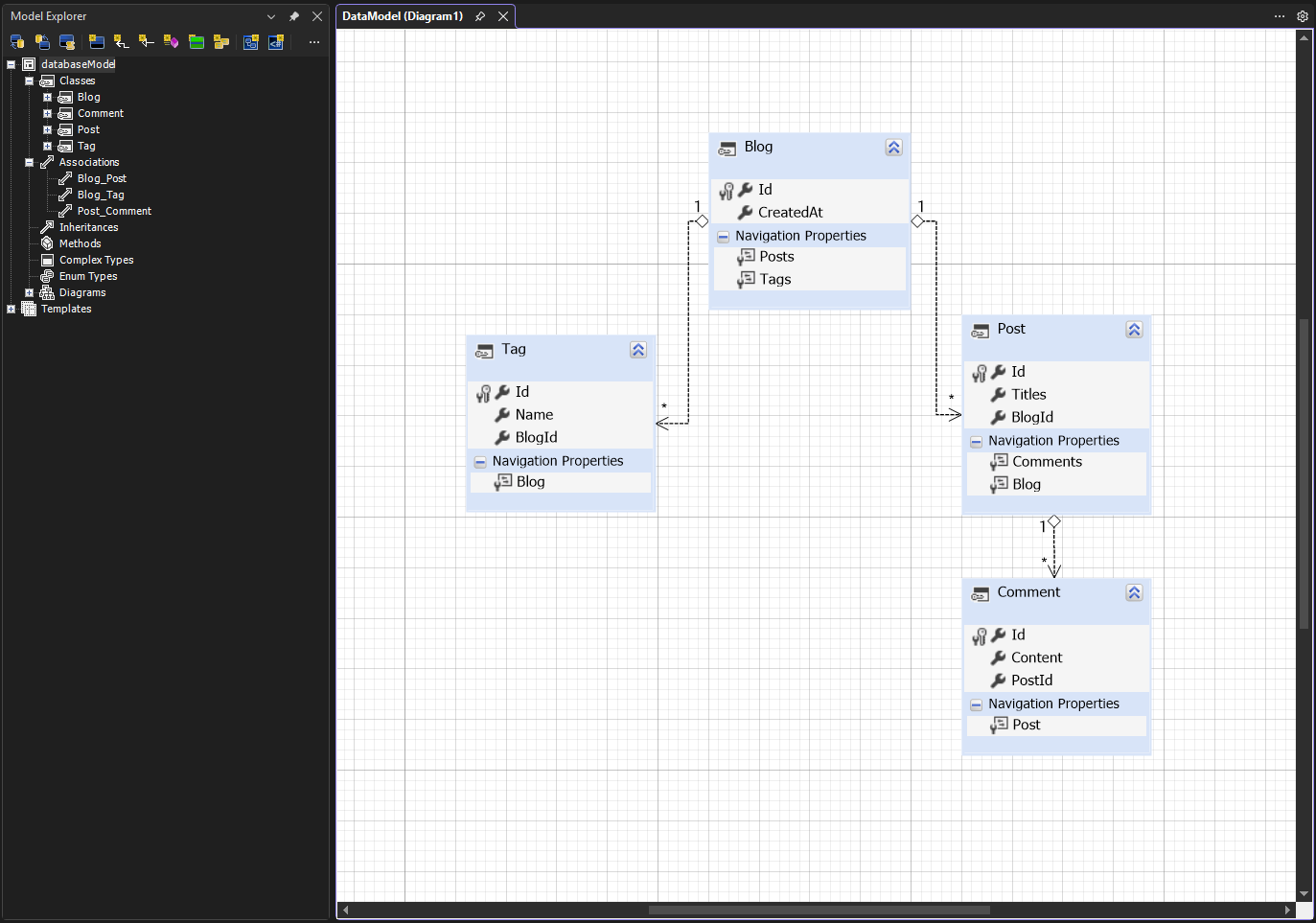
Model explorer contains shortcuts to options and types your diagram has.
Adding a Model
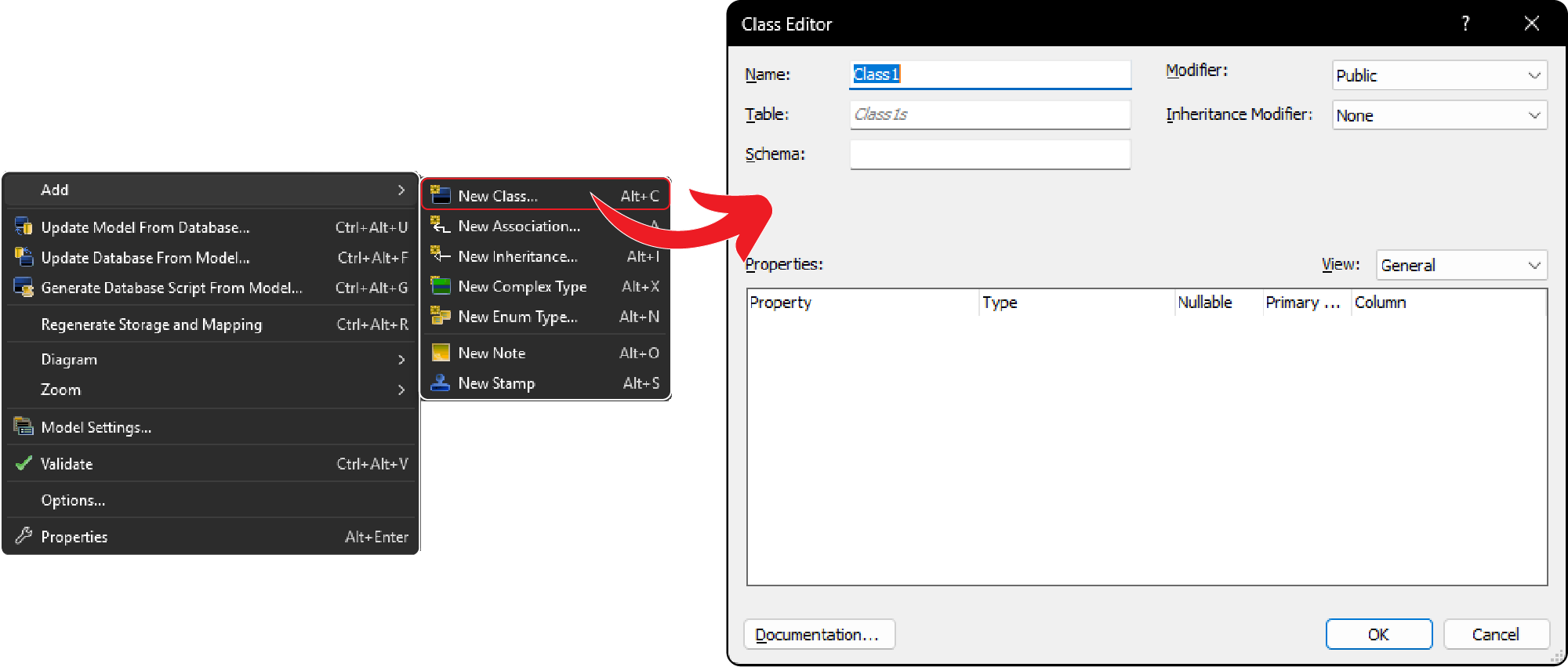
You can add new models and set its properties via the class editor:
Adding a Complex Type
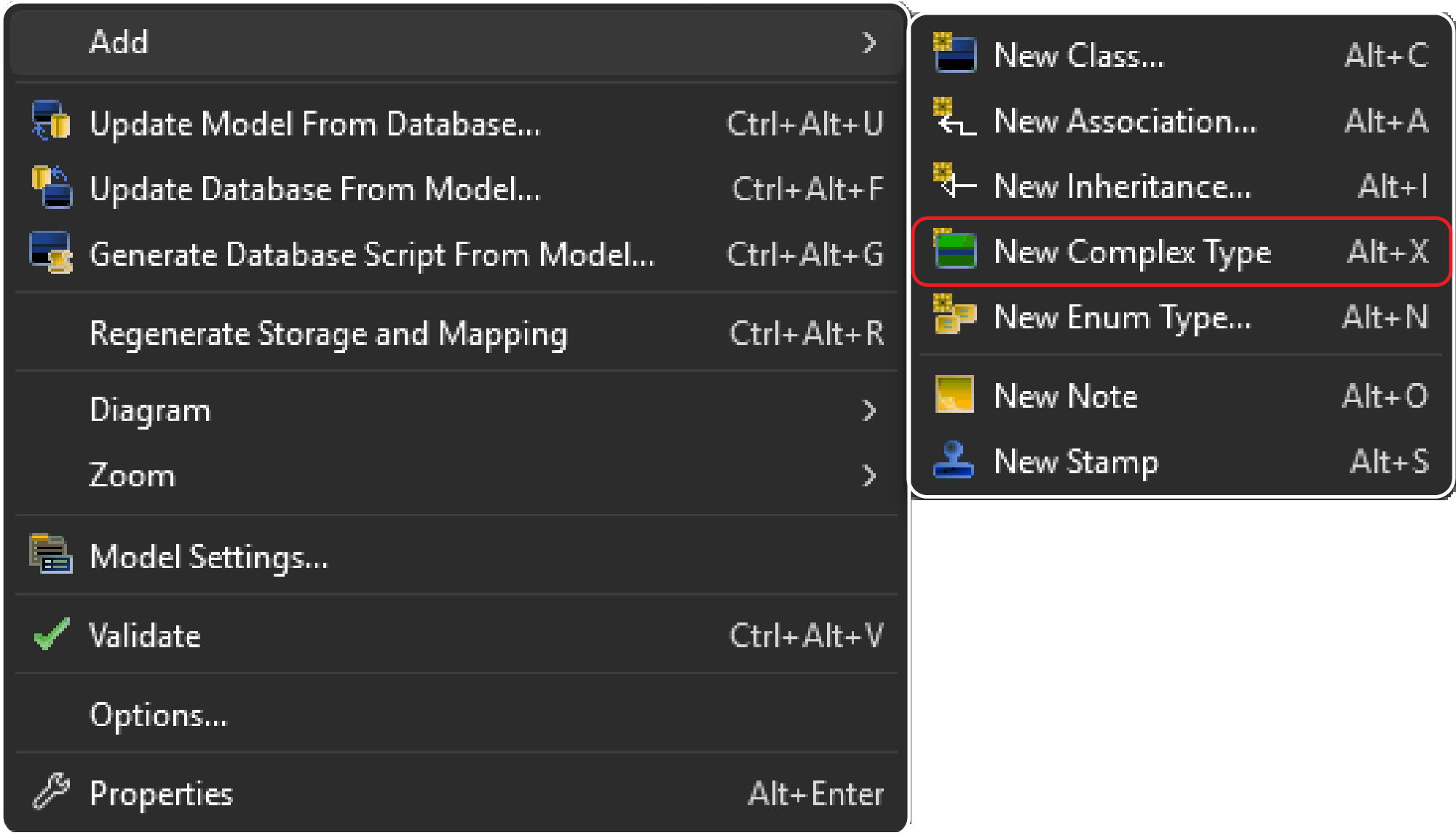
Using this right click menu option you can add a new complex type directly to your diagram:
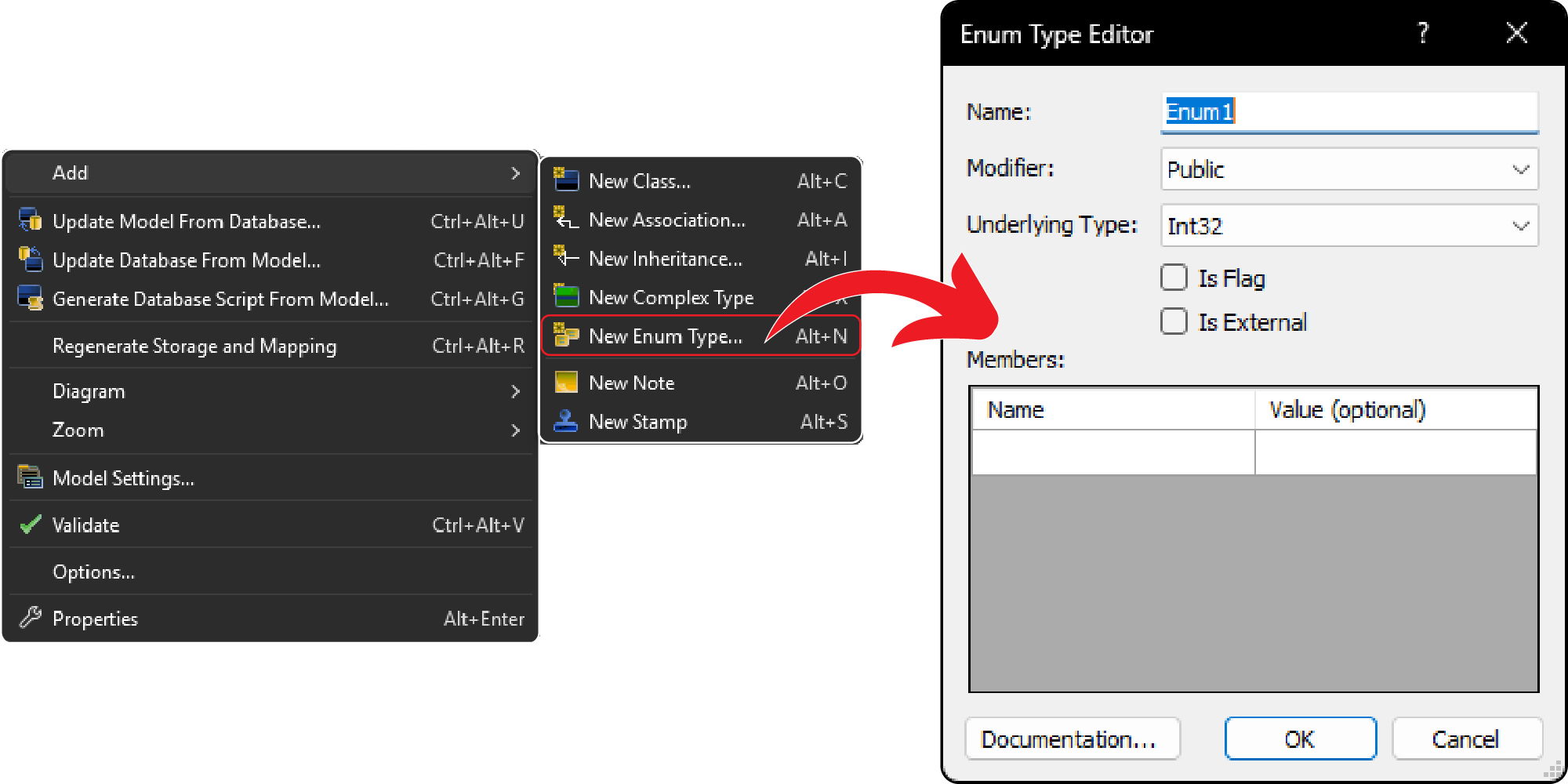
Adding an Enum Type
You can also add a new enum and set its properties and members:
Adding relationships
You can add associations:
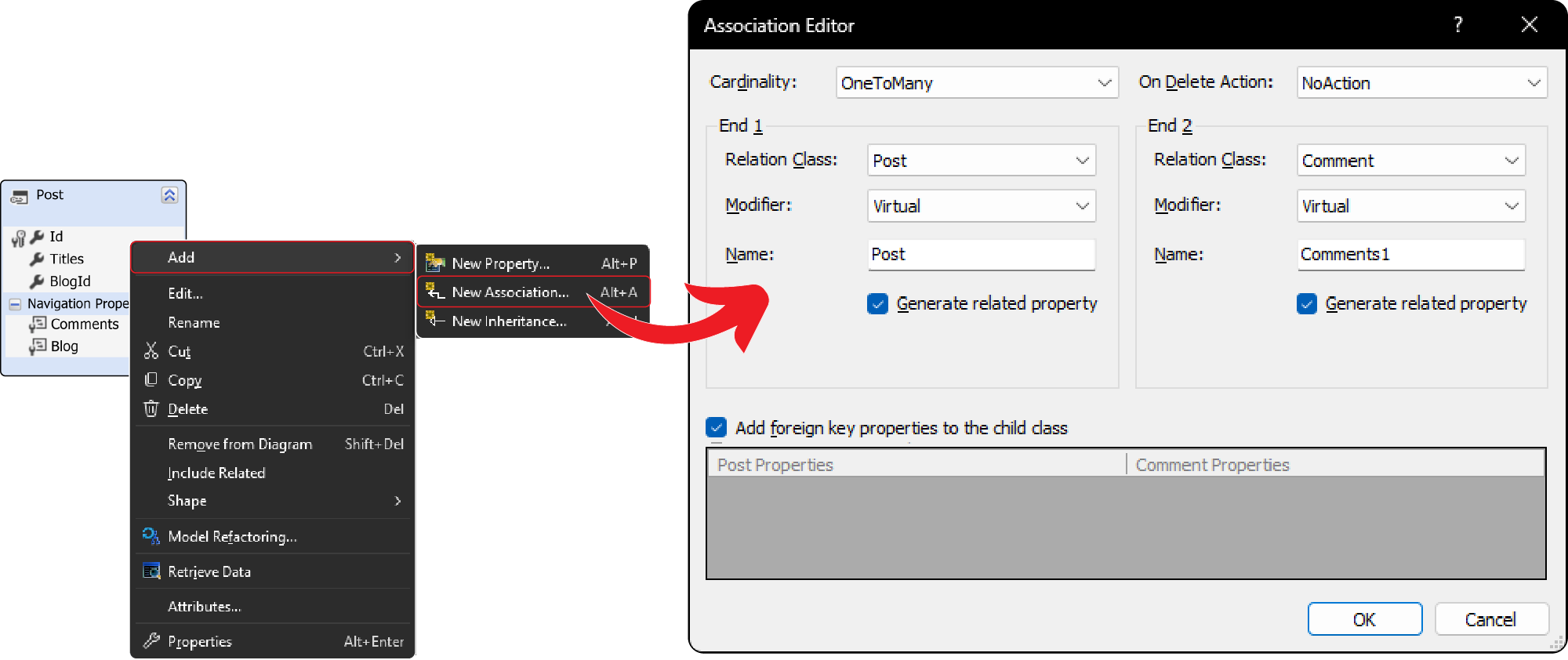
We can set one-to-one, one-to-many and many-to-many relationships.
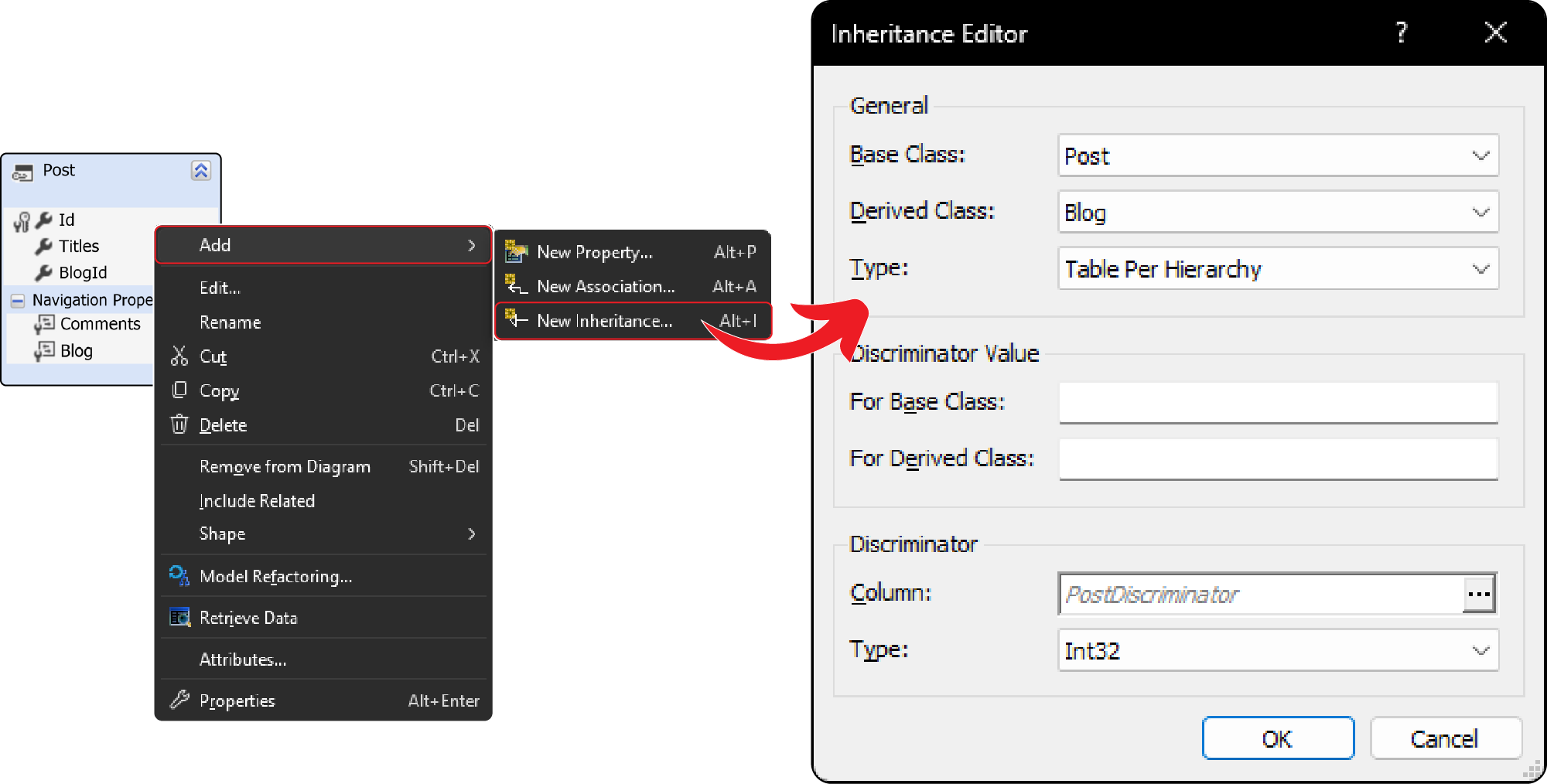
You can also add inheritance:
Saving changes & generated code
On saving changes, everything we made will reflect directly in our codebase:
Here's an example of the generated models and EF Core configuration.
Generated Post entity from the EF Core template:
//------------------------------------------------------------------------------
// This is auto-generated code.
//------------------------------------------------------------------------------
// This code was generated by Entity Developer tool using EF Core template.
// Code is generated on: 9.4.2026. 00:38:13
//
// Changes to this file may cause incorrect behavior and will be lost if
// the code is regenerated.
//------------------------------------------------------------------------------

#nullable enable annotations
#nullable disable warnings

// ... usings ...

namespace WebApi
{
    public partial class Post {

        public Post()
        {
            this.Comments = new List<Comment>();
            OnCreated();
        }

        public int Id { get; set; }

        public string Titles { get; set; }

        public int BlogId { get; set; }


        public virtual IList<Comment> Comments { get; set; }


        public virtual Blog? Blog { get; set; }

        #region Extensibility Method Definitions

        partial void OnCreated();

        #endregion
    }

}
When generating models from a database, you will need to select the tables to include, as well as define the naming conventions that will be applied to the generated elements.
//------------------------------------------------------------------------------
// This is auto-generated code.
//------------------------------------------------------------------------------
// This code was generated by Entity Developer tool using EF Core template.
// Code is generated on: 9.4.2026. 00:38:13
//
// Changes to this file may cause incorrect behavior and will be lost if
// the code is regenerated.
//------------------------------------------------------------------------------

#nullable disable

// ... usings ...

namespace WebApi
{

    public partial class databaseModel : DbContext
    {

        public databaseModel() :
            base()
        {
            OnCreated();
        }

        public databaseModel(DbContextOptions<databaseModel> options) :
            base(options)
        {
            OnCreated();
        }

        protected override void OnConfiguring(DbContextOptionsBuilder optionsBuilder)
        {
            if (!optionsBuilder.IsConfigured ||
                (!optionsBuilder.Options.Extensions.OfType<RelationalOptionsExtension>().Any(ext => !string.IsNullOrEmpty(ext.ConnectionString) || ext.Connection != null) &&
                 !optionsBuilder.Options.Extensions.Any(ext => !(ext is RelationalOptionsExtension) && !(ext is CoreOptionsExtension))))
            {
                optionsBuilder.UsePostgreSql(@"User Id=postgres;Host=localhost;Database=database;Initial Schema=public");
            }
            CustomizeConfiguration(ref optionsBuilder);
            base.OnConfiguring(optionsBuilder);
        }

        partial void CustomizeConfiguration(ref DbContextOptionsBuilder optionsBuilder);

        // ...

        public virtual DbSet<Post> Posts
        {
            get;
            set;
        }

        // ...

        protected override void OnModelCreating(ModelBuilder modelBuilder)
        {
            base.OnModelCreating(modelBuilder);

            // ...

            this.PostMapping(modelBuilder);
            this.CustomizePostMapping(modelBuilder);

            // ...

            RelationshipsMapping(modelBuilder);
            CustomizeMapping(ref modelBuilder);
        }

        #region Post Mapping

        private void PostMapping(ModelBuilder modelBuilder)
        {
            modelBuilder.Entity<Post>().ToTable(@"Posts", @"public");
            modelBuilder.Entity<Post>().Property(x => x.Id).HasColumnName(@"Id").HasColumnType(@"int4").IsRequired().ValueGeneratedOnAdd();
            modelBuilder.Entity<Post>().Property(x => x.Titles).HasColumnName(@"Titles").HasColumnType(@"text").IsRequired().ValueGeneratedNever();
            modelBuilder.Entity<Post>().Property(x => x.BlogId).HasColumnName(@"BlogId").HasColumnType(@"int4").IsRequired().ValueGeneratedNever();
            modelBuilder.Entity<Post>().HasKey(@"Id");
        }

        partial void CustomizePostMapping(ModelBuilder modelBuilder);

        #endregion

        private void RelationshipsMapping(ModelBuilder modelBuilder)
        {
            // ...

            modelBuilder.Entity<Post>().HasMany(x => x.Comments).WithOne(op => op.Post).OnDelete(DeleteBehavior.Cascade).HasForeignKey(@"PostId").IsRequired(true);
            modelBuilder.Entity<Post>().HasOne(x => x.Blog).WithMany(op => op.Posts).OnDelete(DeleteBehavior.Cascade).HasForeignKey(@"BlogId").IsRequired(true);

            // ...
        }

        // ...
    }
}
Compatibility
Compatibility is often a weak point for tools like these, since they need strong support across multiple database providers, IDE versions and ORM frameworks.
However, that is not the case with either Entity Developer or dotConnect.
Entity Developer integrates seamlessly with Visual Studio versions from 2015 through 2026 and supports a wide range of .NET Framework versions starting from 3.5 SP1 and above.
It also works with all major database systems, including SQL Server, PostgreSQL, Oracle, MySQL, SQLite and more.
dotConnect follows the same philosophy. Devart’s ADO.NET data providers are designed to work with both Entity Framework and EF Core, supporting all popular databases.
Devart
Devart is a well-established software company founded in 1997, focused on simplifying and enhancing data workflows for both individual developers and teams.
Over the years, the company has received numerous awards and industry recognitions.
Their tools are trusted by more than 40,000 customers worldwide, including major enterprises such as:
- Microsoft
- IBM
- AT&T
- Bank of America
- Boeing
- Volkswagen
- Toyota
- HP
Pricing
Entity Developer starts from $220 per year for standard and $320 for the professional version.
dotConnect Universal starts from around $270 per year. The price may vary depending on the specific database provider you choose.
The pricing model also includes volume discounts. The longer the license period you choose, the greater the discount you can receive.
Thankfully, they offer a free 30-day trial allowing you to get firsthand experience with their products before you decide to buy a license!
Conclusion
Although it’s a commercial library, the speed and productivity gains often justify the investment.
Without a doubth it
If you want to check out examples I created, you can find the source code here:
Source CodeI hope you enjoyed it, subscribe and get a notification when a new blog is up!